Quick reference · 一頁速查
只需更改接收伺服器名稱
使用 POP 電郵程式 / POP mail app
在每部裝置的現有帳戶,只把 Incoming POP server 改為 wowvps2.dmbiz.net。
保持不變 / Keep unchanged: Email Address、Username、Password、SMTP outgoing server、Port 及加密設定。
請勿刪除或重新建立帳戶,也不要刪除舊郵件;部分 POP 郵件可能只儲存在原本的裝置。
- 選擇裝置 / Choose a device
- Windows Outlook
- Mac
- iPhone / iPad
- Android
- Webmail
- English ↓
中文指引
按您的裝置操作
在每部使用電郵程式的電腦、手機或平板上,更新現有帳戶。
Microsoft Outlook 傳統版
適用於 Windows 傳統版 Outlook。新版 Outlook 的版面和手動修改伺服器方式可能不同;使用新版 Outlook 的客戶可向電郵技術支援查詢其版本的操作位置。
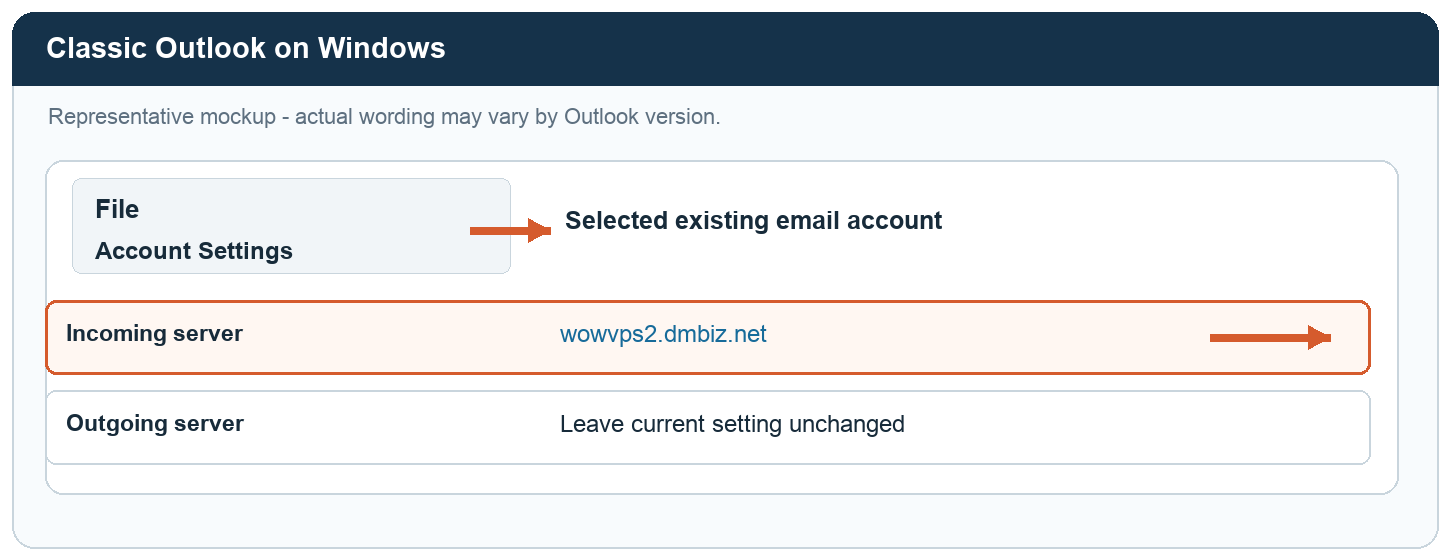
- 開啟 Outlook,選擇 File → Account Settings → Account Settings。
- 選取現有電郵帳戶,按 Change 或 Server Settings(名稱視乎版本)。
- 將 Incoming mail 伺服器改為
wowvps2.dmbiz.net。 - Username、Password、SMTP outgoing server、Port 及加密設定保持不變。按 Next、Done 或 Finish 儲存。
Apple Mail
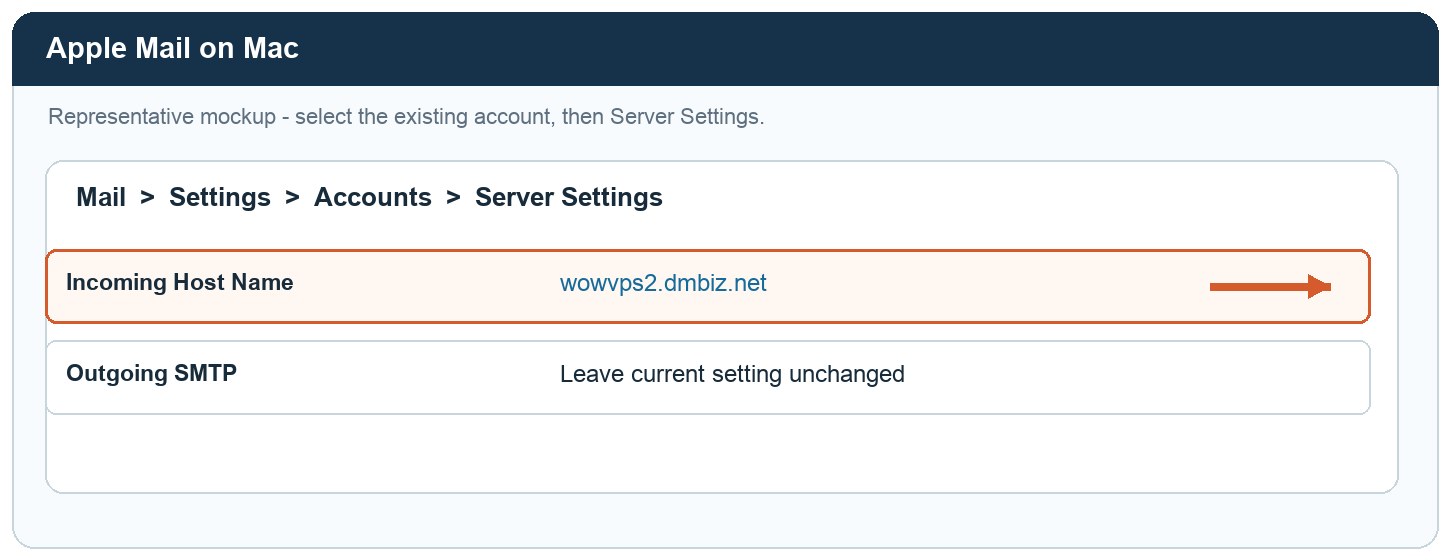
- 開啟 Mail,選擇 Mail → Settings → Accounts。
- 選取現有電郵帳戶,再開啟 Server Settings。
- 在 Incoming Mail Server → Host Name 輸入
wowvps2.dmbiz.net。 - Username、Password、SMTP outgoing server、Port 及 TLS/SSL 設定保持不變。按 Save 儲存。
內置 Mail
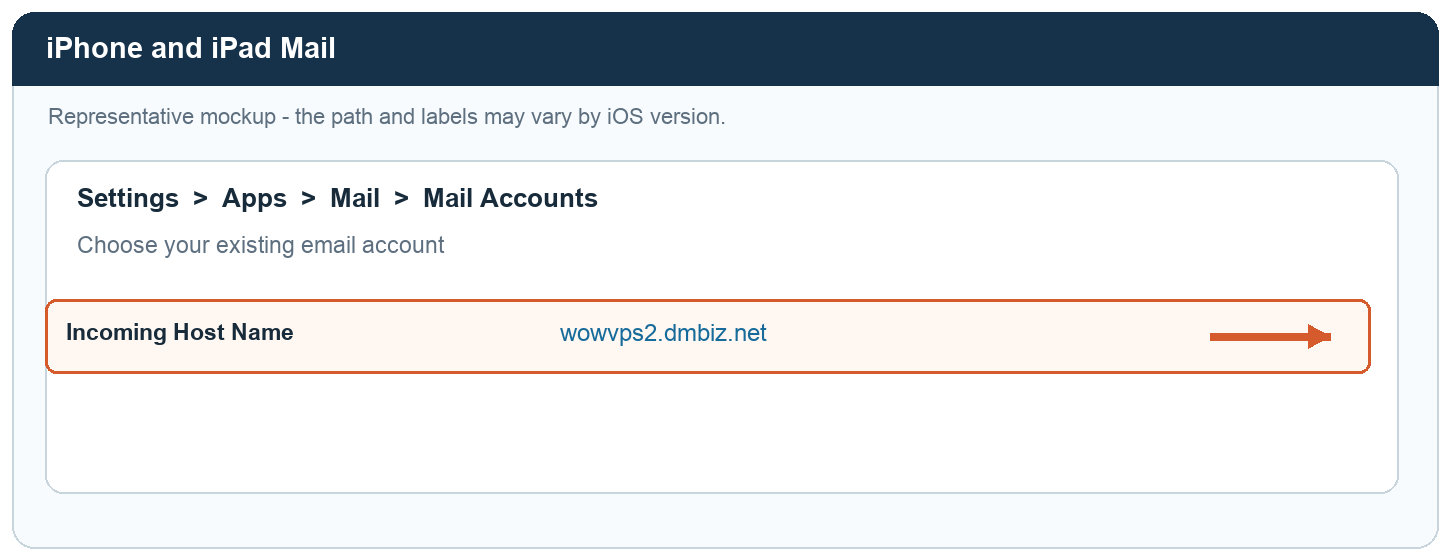
現行 iOS 路徑一般如下;部分舊版本可直接在 Settings 找到 Mail。
- 開啟 Settings → Apps → Mail → Mail Accounts,選取現有電郵帳戶。
- 在 Incoming Mail Server 下,把 Host Name 改為
wowvps2.dmbiz.net。 - Username、Password、SMTP outgoing server、Port 及 SSL 設定保持不變。
- 按 Done 或 Save 儲存。
Gmail app
適用於已加入 Gmail app 的現有非 Gmail 電郵帳戶。
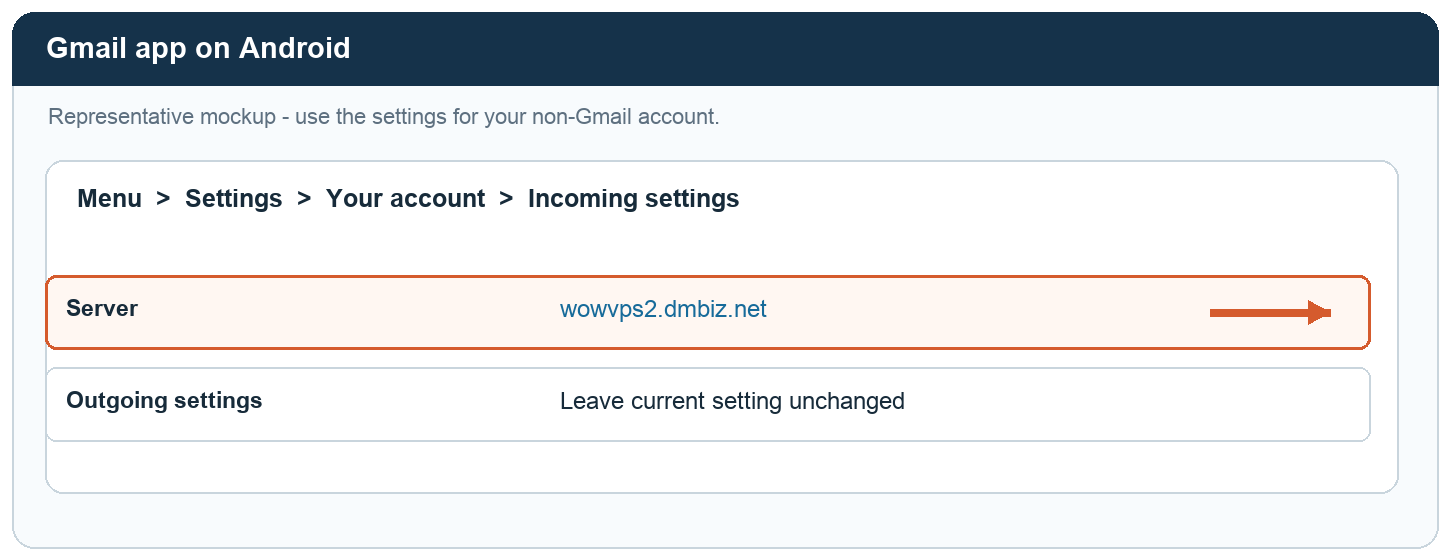
- 開啟 Gmail,按 Menu → Settings,選取現有電郵帳戶。
- 在 Server Settings → Incoming settings,把 Server 改為
wowvps2.dmbiz.net。 - Username、Password、SMTP outgoing server、Port 及安全設定保持不變,然後儲存。
Samsung Email
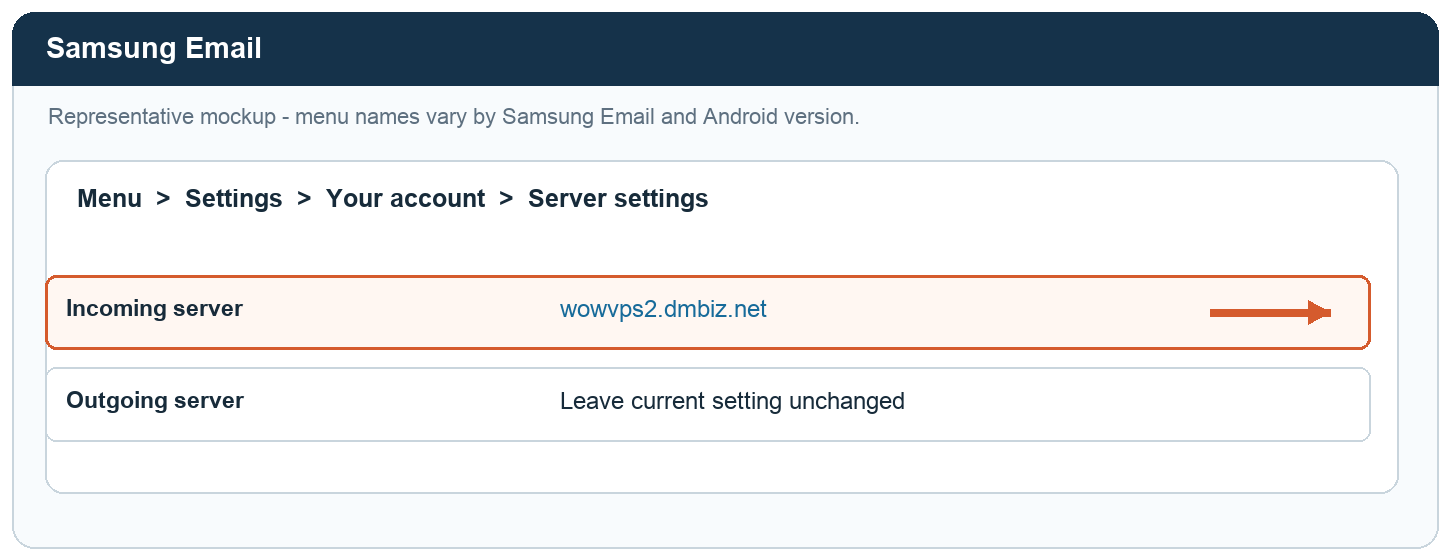
- 開啟 Email,按 Menu → Settings,選取現有帳戶。
- 開啟 Server settings 或 Incoming server,只把接收伺服器改為
wowvps2.dmbiz.net。 - Username、Password、SMTP outgoing server、Port 及安全設定保持不變。按 Done 或 Save 儲存。
所有圖片均為示意畫面,不含真實客戶資料。請保留現有帳戶及舊郵件。
English guide
Update your existing account
Make the change on every computer, phone or tablet you use for email.
From 26 October 2026 at 00:00 Hong Kong time, change the incoming server from wowvps.dmbiz.net to wowvps2.dmbiz.net. No further confirmation is needed. Your email address, Username, Password, SMTP outgoing server, Port and encryption settings stay the same. Do not delete or recreate the account, or delete old mail. Some POP messages may be stored only on your device.
Microsoft Outlook (classic)
These steps are for classic Outlook on Windows. New Outlook can have a different layout and may not offer the same manual server edit; ask your email support contact for the correct steps for your version.
- Open Outlook and choose File → Account Settings → Account Settings.
- Select your existing account, then choose Change or Server Settings, depending on the version.
- Change Incoming mail to
wowvps2.dmbiz.net. - Leave Username, Password, SMTP outgoing server, Port and encryption unchanged. Select Next, Done or Finish to save.
Apple Mail
- Open Mail and choose Mail → Settings → Accounts.
- Select your existing account and open Server Settings.
- Set Incoming Mail Server → Host Name to
wowvps2.dmbiz.net. - Leave Username, Password, SMTP outgoing server, Port and TLS/SSL unchanged. Select Save.
Built-in Mail
The usual path is below; older iOS versions may show Mail directly in Settings.
- Open Settings → Apps → Mail → Mail Accounts and select your existing account.
- Under Incoming Mail Server, change Host Name to
wowvps2.dmbiz.net. - Leave Username, Password, SMTP outgoing server, Port and SSL unchanged.
- Select Done or Save.
Gmail app
For an existing non-Gmail email account added to the Gmail app.
- Open Gmail, choose Menu → Settings and select your existing account.
- Under Server Settings → Incoming settings, change Server to
wowvps2.dmbiz.net. - Leave Username, Password, SMTP outgoing server, Port and security settings unchanged, then save.
Samsung Email
- Open Email, choose Menu → Settings and select your existing account.
- Open Server settings or Incoming server, then change only the incoming server to
wowvps2.dmbiz.net. - Leave Username, Password, SMTP outgoing server, Port and security settings unchanged. Select Done or Save.
Webmail
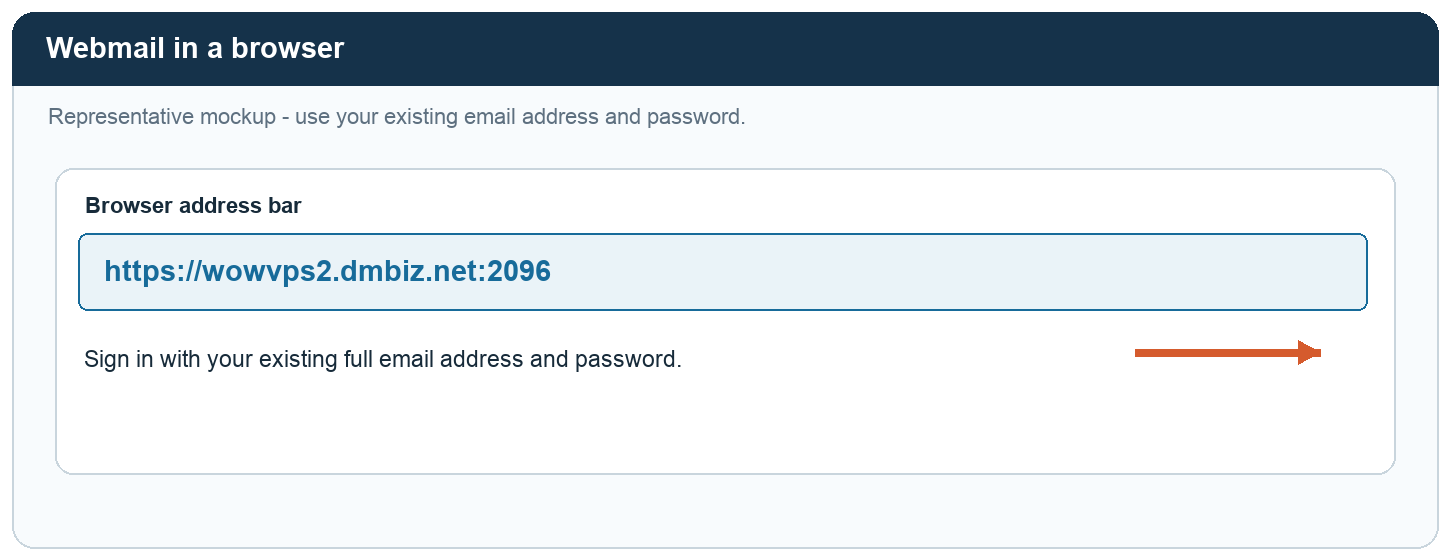
- Open
https://wowvps2.dmbiz.net:2096in your browser. - Sign in with your existing full email address and password.
All illustrations are representative mockups and contain no customer information. Keep your existing account and old messages.